Round Image Corners – Rounded Corner Generator
Round image corners in your browser: drag the slider to set the rounded corner radius, preview it on a checkerboard, keep the corners transparent as PNG or WebP, and download. Nothing is uploaded.
Drop an image here, or click to browse
JPEG, PNG, WebP, GIF or SVG. Stays in your browser.
PNG and WebP keep transparent corners. JPEG has no alpha, so the corners are filled with the colour you pick. The slider is a percentage of half the short side — 100% makes a circle on a square, or a pill on a rectangle. Nothing is uploaded.
What rounded corner radius should you use for an image?
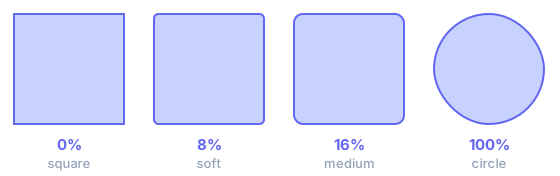
Because the slider works in percent, one value suits both a small icon and a large photo. Starting points:
- Profile picture or avatar — 100%
- Crop to a square first; 100% turns it into a full circle.
- App or product screenshot — 8–16%
- Reads as a deliberate curve next to body text without looking like a bubble.
- Card thumbnail or CMS featured image — 8%
- Matches the corner most card components already use on the page.
- Large hero photo — 4–8%
- A little softening; a big percentage on a wide photo turns into a stadium shape.
- Email header image — 4–8%
- Baked in, because many email clients drop the CSS that would round it.
Rounded corner image vs CSS border-radius: when to bake the curve in
CSS border-radius is the right tool when you control the page: the radius stays editable, the file stays rectangular, and you can change the curve without re-exporting. Baked-in rounded corners are for everywhere else — email clients that strip CSS, CMS featured-image slots, app stores, and avatar uploads that display the file as-is.
The radius here is a percentage of the maximum useful value: half of the shorter side. On a square, 100% is a circle. On a landscape photo, 100% is a stadium (pill). Soft / Medium / Large map to 8%, 16% and 32% so the look scales from a 64-pixel icon to a 2000-pixel photo instead of a fixed 16px that vanishes on a large canvas.
PNG and WebP keep an alpha channel, which lets the four corners become transparent and sit cleanly on any background. JPEG has no transparency; those pixels are filled with a colour you pick. If you need a rounded JPEG for a site that rejects PNG, match the fill to the page background.
Rounding does not crop or resize: width and height stay the same. Crop to 1:1 first if you want a circular avatar, then set the slider to 100%. Compress afterwards if you need a smaller file.
In pixels that works out at 400 for a 1200×800 photo, so Medium (16%) draws a 64-pixel curve on each corner; the same setting on a 64-pixel icon bends it by 5 pixels. Sizing a rounded corner image in percent rather than a fixed number is what keeps a row of thumbnails and a hero shot looking like they belong together.
The checkerboard behind the preview is not part of the file — it marks where the pixels are transparent. If the corners look white rather than checkered, the format is JPEG (or the fill colour is white), and that white will stay in the image wherever you place it. Keep the format transparent when the rounded corner image has to sit on a coloured card, a dark email template or a page background you do not control. WebP usually writes a smaller file than PNG at the same quality, though a few older email clients still do not render it.
Transparency has a cost: a rounded PNG is often slightly larger than the square original even though part of the picture is now invisible. That is normal: the transparent corners still occupy pixels in the file. If size matters more than perfect edges, export WebP, or run the result through the image compressor afterwards — compressing first and rounding second would soften the curve you just made.
Processing is local. Animated GIFs become a single frame. SVG is rasterised. For print work that needs a colour profile, use an editor; this tool is for everyday web and social assets.
Related tools
These free tools pair well with this page — open them in a new tab to finish your workflow.
Frequently Asked Questions
How is the radius measured?
The slider is a percentage of the maximum useful radius — half of the shorter side. 0% leaves sharp corners. 100% makes a circle on a square image, or a stadium/pill on a rectangle. You can also type an exact pixel value.
Will the corners be transparent?
Yes if you export PNG or WebP. JPEG cannot store transparency at all, so everything outside the curve takes the fill colour you choose (white by default). Use PNG for avatars and UI that sit on a coloured page.
Is this the same as CSS border-radius?
Visually similar, but this bakes the curve into the pixels so you can upload a rounded PNG to places that do not run your CSS — email, CMS featured images, social avatars. CSS still wins when you want the radius to stay editable on the web.
Does rounding crop the photo?
It hides the four corners; it does not change width or height. The downloaded file is the same pixel size as the original. To change dimensions, use the resizer or cropper first.
What do the Soft / Medium / Large presets do?
They set the slider to 8%, 16% and 32%, so the look stays consistent on both small icons and large photos. Pill / circle is 100%.
What rounded corner radius should I use?
For app screenshots and cards in a blog post, 8–16% reads as a deliberate curve without looking like a bubble. On a large photo, 4–8% is enough to soften it. For a circular avatar, crop to a square first and set 100%. When several pictures appear side by side, give them all the same percentage so the curve stays consistent at different sizes.
Why does my rounded corner image have white corners?
The export format is almost certainly JPEG, which has no alpha channel, so the area outside the curve is filled with the colour you picked — white by default. Switch the format to PNG, or to WebP for a smaller file. If you must use JPEG, set the fill to match the background the image will sit on.
Is the file uploaded?
No. Drawing and encoding run locally through the Canvas API. You can disconnect after the page loads and the tool still works.
Do animated GIFs keep moving?
No. The canvas sees one frame, so you get a still PNG, JPEG or WebP. Keep the original GIF if you need motion.